
Common treatments when preparing images for DTF
A real job shows why enlarging an image and removing its background aren’t always enough to make it ready for DTF printing.
When I receive an image to prepare for DTF printing, one of the first things I try to understand is the file’s actual condition.
Sometimes the image looks ready. It has a good composition, interesting colors, well-defined details, and even what seems to be adequate resolution.
But as soon as I start working on it, I realize there are still things to sort out.
It might be a background that hasn’t been fully removed, an edge that needs correcting, small remnants scattered around the image, or details that didn’t hold up very well during enlargement.
This happens quite often, especially with images received from different sources or created with artificial intelligence tools.
What I think matters is that a visually appealing image isn’t necessarily a print-ready file.
Between receiving artwork and delivering a file prepared for production, there may be several treatments that aren’t apparent to someone looking only at the finished result.
I’ll use a real job to show some of the procedures I usually apply and explain why they may be necessary.
A bigger image doesn’t necessarily mean a better image
One of the first things to consider is resolution.
There are now tools that can enlarge images impressively. Some can multiply a file’s dimensions several times, reconstructing details and producing visually interesting results.
That helps a lot, especially when a small image needs to be used for a larger print.
But there’s a difference between increasing the number of pixels and obtaining an image that’s genuinely suitable for the job.
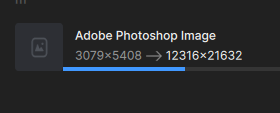
In the example I’m using, the original image was approximately 3079 × 5408 pixels. After enlargement, it became roughly 12316 × 21632 pixels.
That’s a considerable increase.
Yet even with all that additional information, there were still details that needed manual examination and correction.
That happens because enlargement can’t automatically solve every problem in the original file.
If there’s an irregular edge, a small flaw in the composition, or an area with ambiguous information, the processing may preserve that problem, change it, or even create new irregularities.
That’s why I don’t see enlargement as the end of preparation. In many cases, it’s simply a step that provides more scope to begin the actual work.
So where does 300 PPI come in?
This is another subject that often causes confusion.
When talking about print files, you often hear that an image needs to be 300 DPI. For a digital image, the more precise term is PPI, or pixels per inch.
But simply setting a document to 300 PPI doesn’t mean it has gained quality.
Its pixel dimensions and the physical size at which it will be used also matter.
An image can be set to 300 PPI and still be too small for a particular application. Likewise, a file with plenty of pixels may have visual problems that don’t disappear just because the resolution is correct.
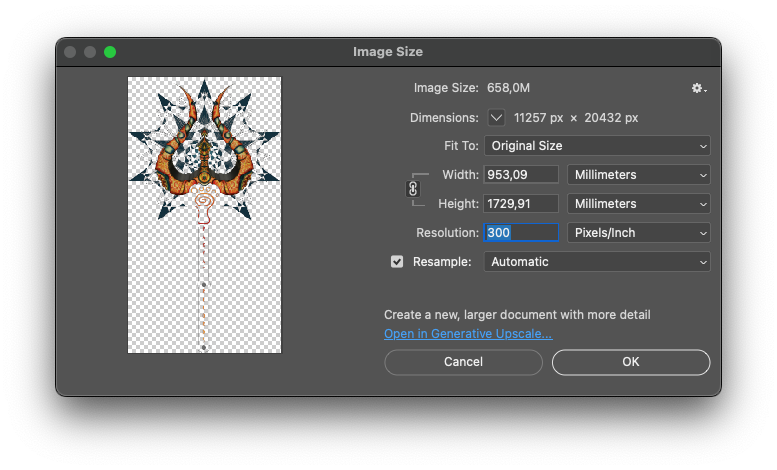
In my example, after treatment and dimensional adjustments, the working document was 11257 × 20432 pixels, set to 300 PPI.
Those numbers help establish the relationship between the file’s size and its possible uses.
But the assessment doesn’t end there.
I still need to examine outlines, smaller details, color transitions, and anything else that might affect the result when the image is reproduced.
Resolution matters, but it doesn’t replace visual quality or technical preparation.
The background can hide problems you aren’t seeing
This may be one of the most important treatments and, at the same time, one of the easiest to overlook.
Imagine an image on a white background.
You remove the background, inspect the artwork, and everything seems fine. The main elements are intact, the edges look clean, and there’s nothing obvious to suggest a problem.
Now place that same image on a black background.
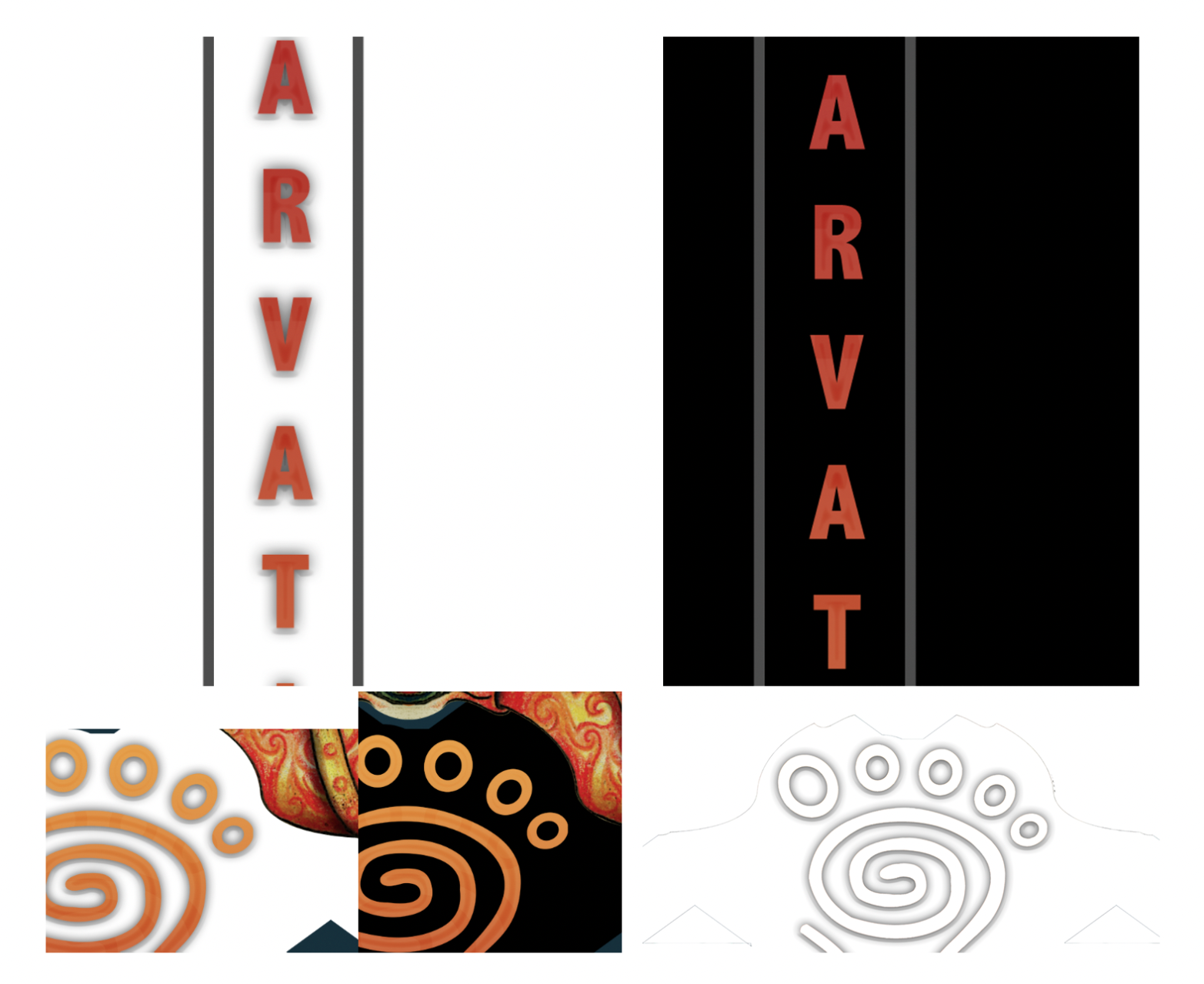
Suddenly, grayish remnants, faint shadows, semitransparent areas, and outlines that shouldn’t be there become visible.
Those elements were already present, but they were hard to notice against the previous background.
In the example I’ve selected, this is particularly clear around the red letters. Against white, there are shadows and remnants around the characters. Viewing the image against black makes it easier to see how those elements affect the artwork’s appearance.
There are also decorative details that look right in one view but reveal unwanted outlines when examined under different conditions.
That’s why I like checking certain images against backgrounds with different contrasts.
The aim isn’t simply to make everything opaque or remove all transparency.
Artwork may use transparency intentionally, and that needs to be respected.
The problem is whatever remains in the file without being part of the image I actually want to reproduce.
Depending on the DTF preparation and how the white underbase is handled, those remnants may end up appearing in the print.
So before considering a background removed, it’s worth checking whether it was truly removed or simply became hard to see in the usual view.
Not every cleanup can be automated
Automatic selection and background-removal tools have improved considerably.
On many jobs, they save time and deliver excellent results.
But some images contain details that an automatic selection can’t interpret correctly.
This is especially common with closely packed elements, complex outlines, small internal gaps, or areas where the image colors blend into the background.
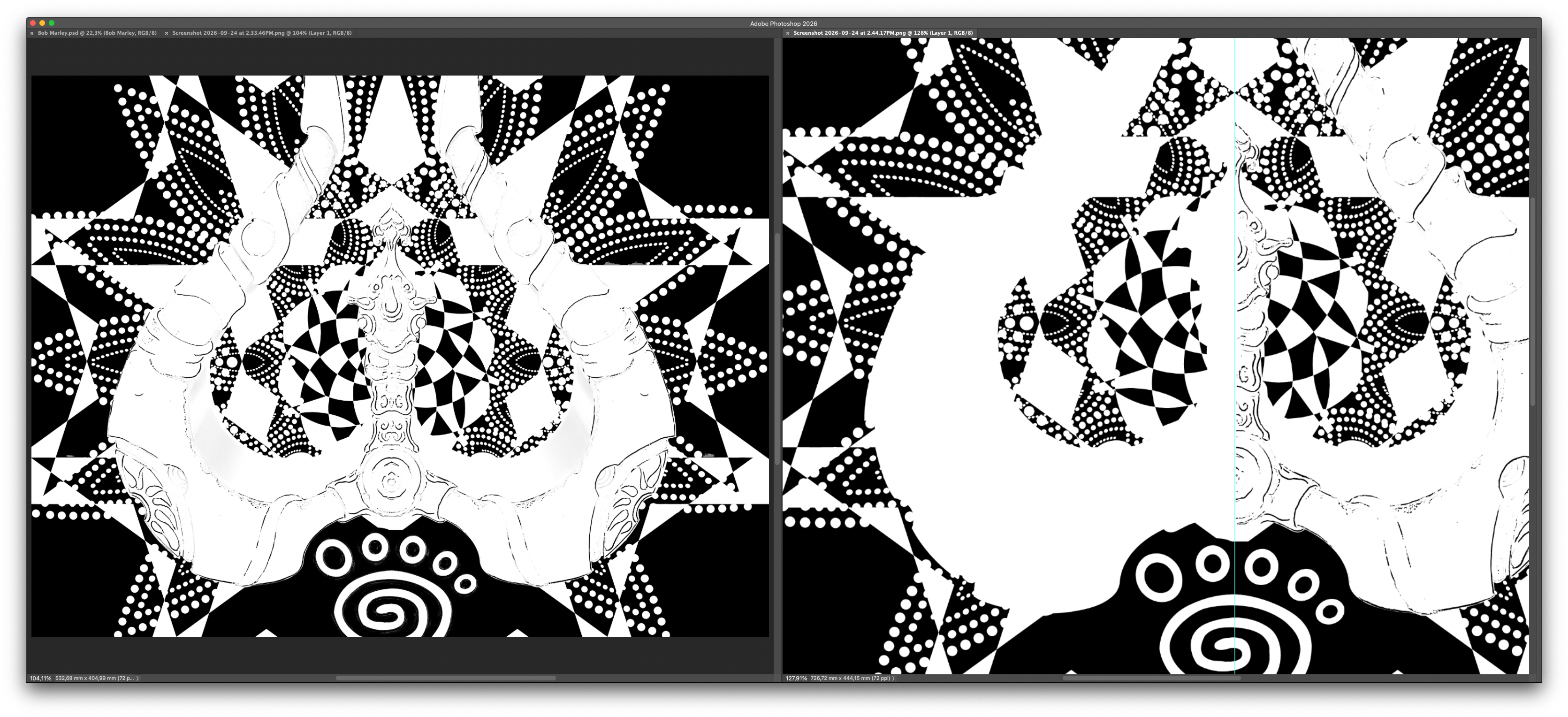
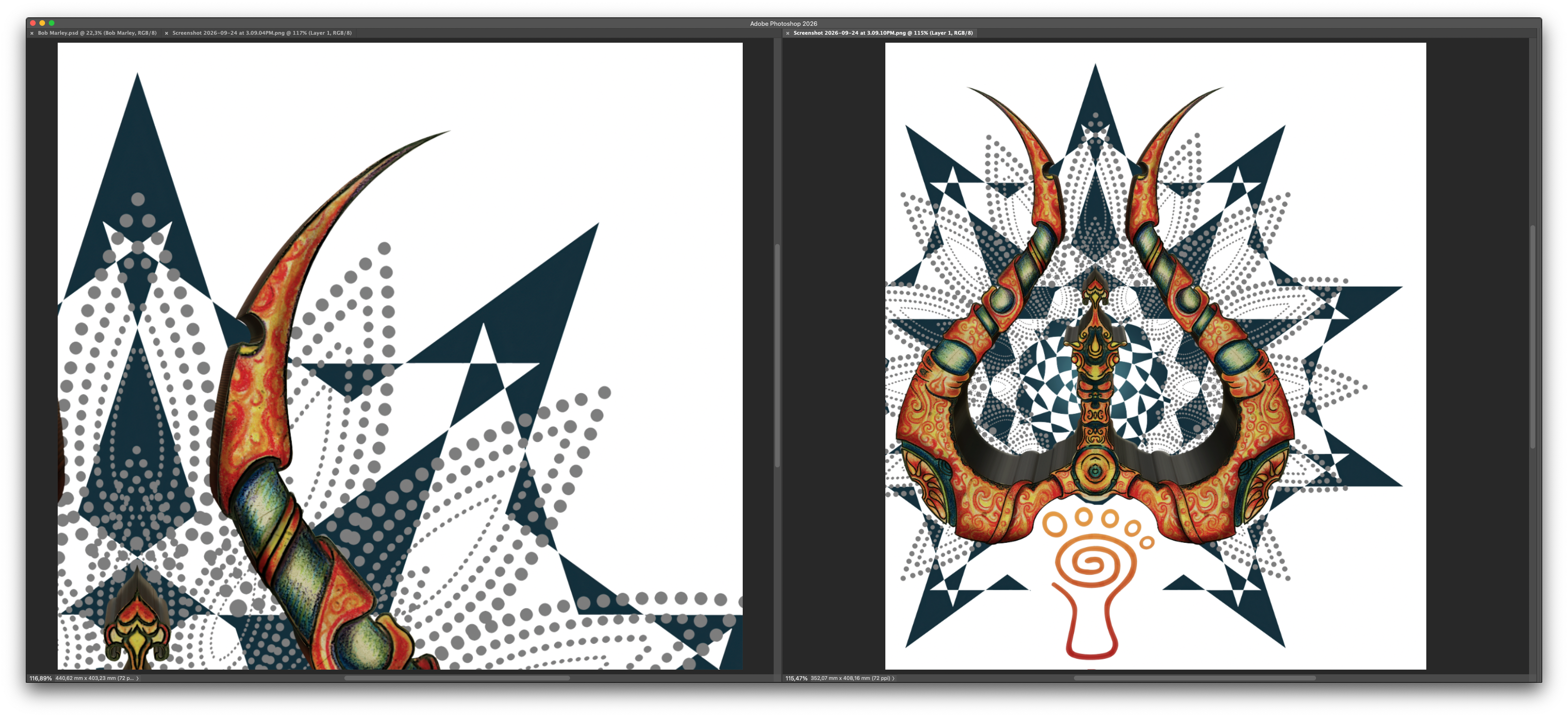
The job I’m using as an example had a highly detailed ornamental composition with geometric shapes, circles, textures, and overlapping elements.
Some areas needed to be examined individually.
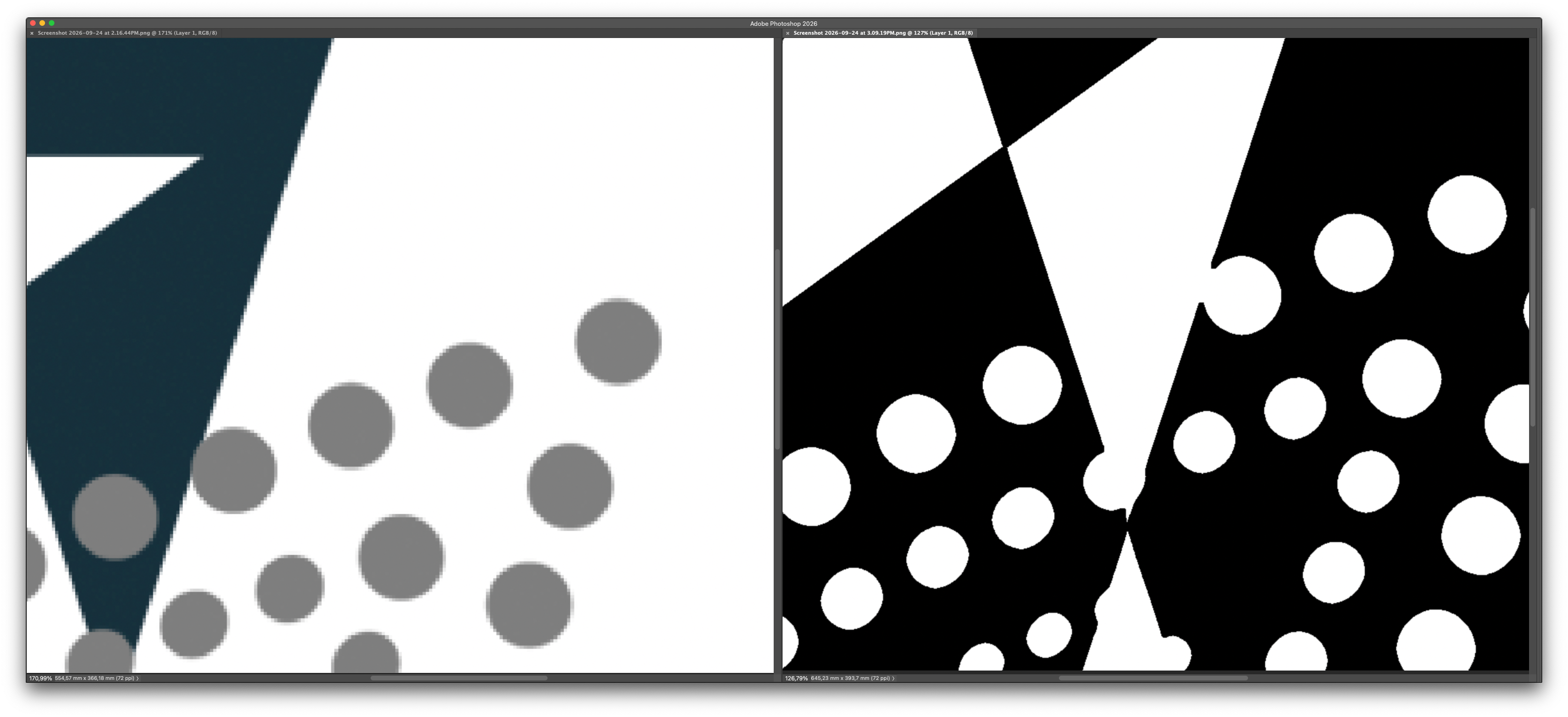
One way I identify these problems is to view certain elements in black and white, increasing the contrast between the areas that need to be preserved and those that need to be removed.
That makes small dots, breaks, and irregularities easier to notice than in the color image.
In some situations, I use selections and masks. In others, I use Photoshop’s Pen tool to reconstruct an outline more precisely.
No single tool is necessarily the best for every image.
What matters is choosing a procedure that preserves the artwork’s original character without carrying unnecessary defects into the final file.
And there’s a point I consider essential: cleaning up an image doesn’t mean simplifying it indiscriminately.
If a texture is part of the composition, it needs to stay. If an irregularity is intentional, it shouldn’t be removed merely because it differs from a perfectly geometric line.
The treatment needs to distinguish the artwork’s character from an actual problem.
Small edge defects deserve attention, too
There’s a type of problem that rarely stands out when viewing the whole image.
Small irregularities along the edges.
A circle that has lost part of its outline, a distorted triangular tip, a little bump where two shapes meet, or a few isolated pixels left after cutting out the background.
In a reduced view, all of this may seem insignificant.
But as I start preparing the file, especially at larger sizes, these irregularities become easier to identify.
The image I’m using contained several geometric elements and sequences of circles.
Some of those shapes needed relatively regular outlines because that regularity was part of the original composition.
So I made localized corrections, trying to preserve the drawing without changing its structure.
I’m not saying every image needs perfectly smooth edges.
An illustration with texture, brushstrokes, or organic outlines may depend on precisely those characteristics.
But when a shape should have a defined boundary and there’s a distortion caused by processing, it’s worth correcting.
It takes care, but it helps deliver a more consistent file.
The finishing work needs to hold up across the whole image
After treating edges, outlines, and small details individually, it’s time to assess the complete image.
In this example, the goal wasn’t simply to remove the background. It was to make sure the composition’s elements were properly defined, with clean outlines and no unwanted remnants or transparency.
In areas that need to be solid, pixels should have 100% opacity. That prevents small amounts of transparency left by processing from interfering with DTF print preparation.
This is particularly important for geometric elements, circles, tips, and other details that depend on well-defined boundaries.
Viewing the enlarged image lets me check the quality of those edges. Returning to the full composition lets me check that the corrections preserved the original drawing.
The result is a technically treated image with properly defined elements, ready to move on to production.
Color adjustments come at the right stage
After the structural treatments, it’s time to adjust the appearance.
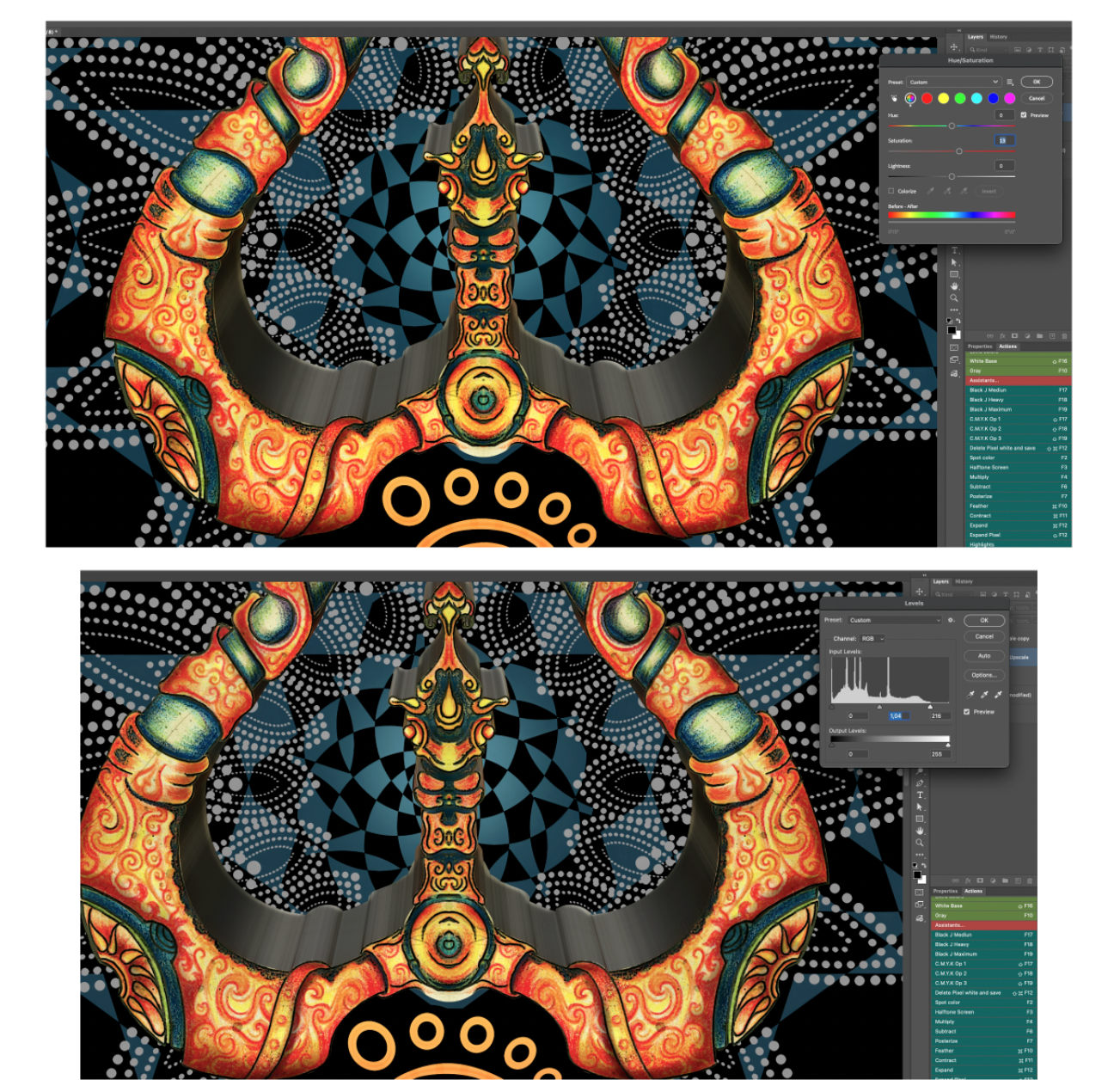
Depending on the image, I may work a little on saturation, contrast, or levels.
Those adjustments help balance certain areas and recover an appearance more suited to the result I’m looking for.
In this example, I made moderate saturation and levels adjustments in Photoshop.
But I like to make an important distinction.
Increasing saturation doesn’t fix a poorly cut-out edge.
Improving contrast doesn’t automatically eliminate semitransparent remnants.
And adjusting levels doesn’t replace reconstructing a damaged detail.
These treatments serve different purposes.
That’s why I prefer to resolve structural image problems first, then assess which color corrections are actually necessary.
I also don’t believe every piece of artwork needs increased contrast or saturation.
Some images arrive with suitable colors already. Others use soft tones intentionally.
The treatment should respect those characteristics.
The aim isn’t to make every image stronger or more vibrant, but to prepare each one according to its needs.
Preparing an image is different from simply processing it
Today, many tasks can be completed in seconds.
With readily available tools, it’s possible to enlarge an image, remove the background, sharpen it, adjust the colors, and export a transparent PNG.
That’s excellent and makes the work much easier.
But I believe there’s an important difference between applying those processes and truly preparing an image for production.
When preparing a file, I need to examine what happened after each intervention.
Did enlargement preserve the details?
Did background removal leave remnants?
Are the outlines still appropriate?
Is there transparency that shouldn’t be there?
Did the color adjustments respect the artwork’s original appearance?
And, above all, is the file consistent with how it will be used?
These questions don’t mean every job needs every stage I’ve described.
A well-prepared image may need very little intervention.
Another may need a great deal of manual work.
That depends not just on the tool used, but on the condition of the file received and the result that needs to be achieved.
Ultimately, the goal is quite simple: to deliver an image that isn’t just visually interesting, but has been carefully examined and prepared for its intended use in printing.
Because there’s a difference between an image that looks ready and an image that has actually been prepared to print.
Joel Mariano
PhotoshopSilkScreen